
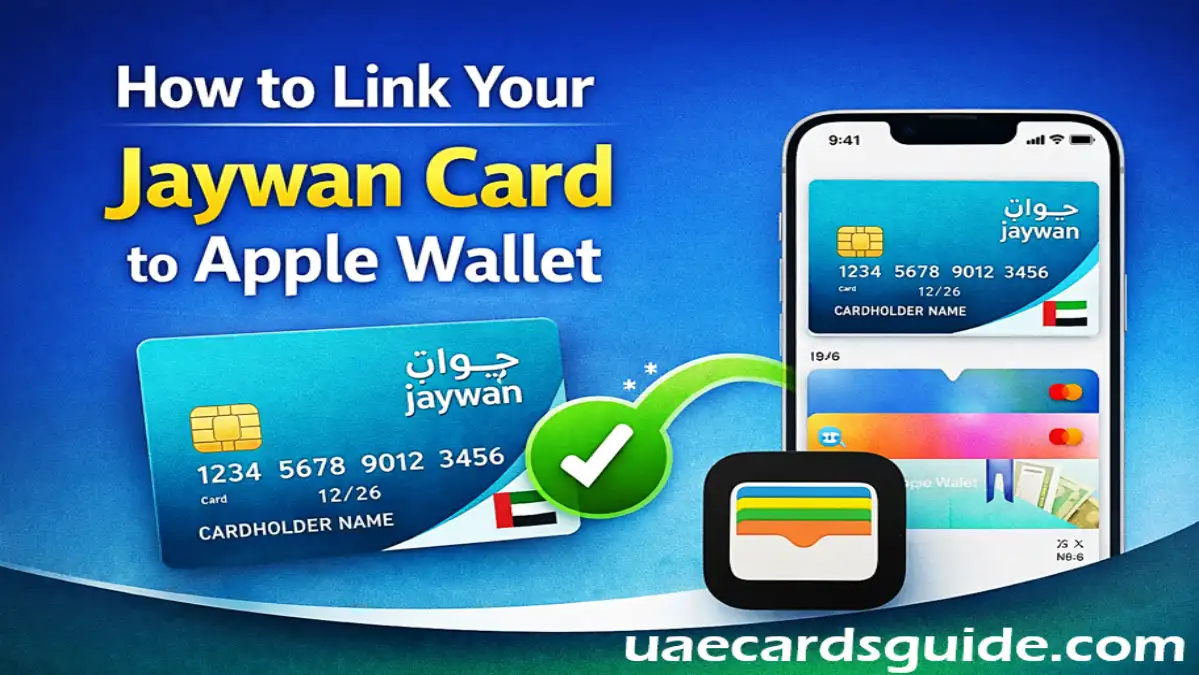
If you hold a Jaywan card in the UAE, you can now add it to Apple Wallet and use it with Apple Pay for fast and secure payments in stores, apps, and online. Jaywan is the UAE’s first national card scheme, and it works with Apple Pay on supported iPhones and Apple Watches.
In this article, we explain how to link your Jaywan card to Apple Wallet so that you can leave your physical card at home and make payments using only your phone or watch.
Requirements for the Jaywan Card to Apple Wallet
Before you link your Jaywan card, you must make sure of important things like:
- Your Jaywan card is activated (you can check in your bank app or Mwallet app).
- Your iPhone, iPad, or Apple Watch supports Apple Pay (iPhone 6 or later, Apple Watch Series 1 or later).
- Apple Pay is available in your country, and your bank supports Jaywan in digital wallets.
If your card is not yet activated, open your bank’s app (for example, Mbank, DIB, or Mashreq), select “Activate Card”, set your PIN, and confirm with the OTP sent to your mobile number. Follow the step-by-step process to activate Jaywan card.
Step‑by‑Step: How to Add Jaywan Card to Apple Wallet
Two ways to add Jaywan Card to Apple Wallet online:
Method 1: Using the Apple Wallet App
- Open the Wallet app on your iPhone
- Tap the “+” (Add Card) button
- Select “Debit or Credit Card” or “Prepaid Card”, depending on your Jaywan card type.
- Scan your Jaywan card using the camera or enter details manually.
- Enter your card details such as:
- Jaywan card number
- Expiry date (MM/YY)
- Cardholder name (as printed on the card)
- CVV/CVC from the back of the card.
- Verify your card using OTP (sent via SMS or bank app)
- Tap “Next” and complete setup
Once verified, your Jaywan card will be added to Apple Wallet. Now you can use it in the store and on the online payment platform.
Method 2: Through Your Bank App (Recommended)
Many UAE banks allow direct integration:
- Open your bank’s mobile app
- Go to the “Cards” section
- Select your Jaywan card
- Tap “Add to Apple Wallet”.
- Enter the required details for the Jaywan card.
- Confirm and complete verification.
This method is usually faster and more secure.
How to Pay with Jaywan in Apple Wallet
Once your Jaywan card is linked to your Apple Wallet, it is easy to use. You can use it in three easy ways:
- In‑store payments:
- In‑app payments:
- At checkout, tap Apple Pay and confirm with Face ID or Touch ID.
- Online payments on Mac or iPad:
- Tap Apple Pay in Safari or apps, then confirm with Touch ID or your device passcode.
Jaywan runs on major global networks, so you can use it in many popular stores and online shops inside and outside the UAE.
Conclusion
Adding or linking your Jaywan card to Apple Wallet is a fast and secure way to modernise your everyday payments. With just a few taps, you can make payments in stores, apps, and online using your iPhone or Apple Watch without the need for a physical card. By following the simple steps outlined above, you can speed up the checkout process and keep your card details safe.