
How to Add Your Emirates ID to Your Phone Wallet (Apple & Samsung Wallet 2026)
Tags: add emirates id, apple wallet, samsung wallet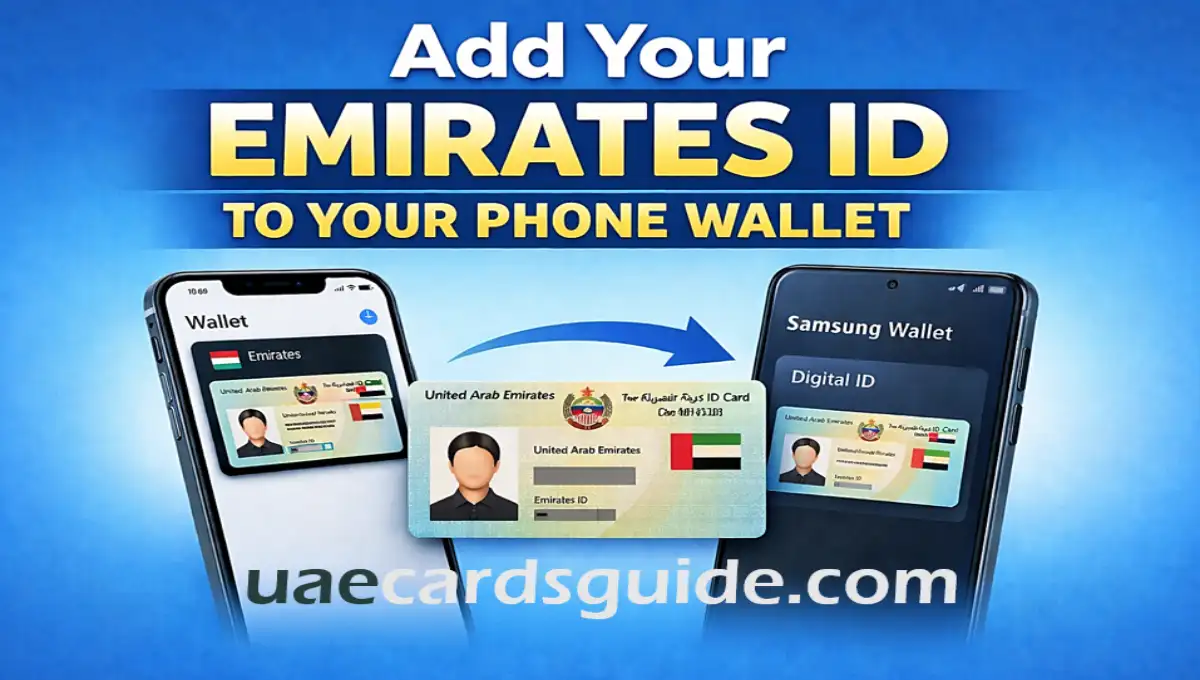
We have all been in this situation at some point, standing at a counter or security gate, searching through our wallets for our Emirates ID, only to realize that it was left behind in another bag at home.
However, nowadays in the UAE, forgetting your wallet is no longer a major issue. With the country’s move towards a paperless system, your phone can now serve as your official ID. You can save a legally valid digital version of your Emirates ID directly to your Apple Wallet or Samsung Wallet.
Must know the Essential Conditions
Before getting started, make sure you have these two things ready:
- A verified UAE Pass account: If you haven’t completed the face-scan verification yet, please do so first. This step is essential for secure access.
- The UAEICP app: this is the official app of the Federal Authority for Identity and Citizenship. Ensure that it is updated to the latest version.
- Active Internet: You need a stable connection to obtain a secure certificate from the government server.
For iPhone Users: Add to Apple Wallet
Apple has worked closely with the UAE authorities to make this process easy and reliable. Once your ID is added, you can use it just like a credit card, even if you do not have an internet connection.
Follow the simple steps here:
- Open the UAEICP app and log in using your UAE Pass.
- Go to the Emirates ID section on the dashboard.
- Tap on your profile option.
- Select the option “Add to Apple Wallet.”
- Confirm using Face ID or your passcode.
That’s it. You can now access your digital Emirates ID on your iPhone by double-clicking the Side button.
For Android Users: Add to Samsung Wallet
Samsung devices offer strong security through Knox processor, which keeps your digital ID encrypted and protected.
- Open Samsung Wallet (or Samsung Pay on older devices) on your android devices.
- Tap the “+” icon to add a new item.
- Select “Digital ID” or “Government ID”.
- Link it with the UAEICP app.
- Verify using fingerprint, PIN, or OTP sent to your phone.
Once done, you can access your Emirates ID at any time by swiping upwards on your screen.
How to Use Your Digital ID
Once stored, you won’t need to open the ICP app.
- At Airports: You can show the QR code from your Wallet app at Smart Gates.
- At Government Offices: Simply double-click your power button (Apple) or swipe up (Samsung) to present your ID.
- NFC Sharing: In 2026, some banks and telcos will allow you to “tap” your phone against their reader to automatically share your EID details securely.
Where Can You Use It?
In 2026, the digital Emirates ID is not just a backup. It’s fully accepted across the UAE. You can use it for:
- Airport Smart Gates: No more standing in line to search for your card.
- Police and Security Checks: It is legally recognized across all Emirates.
- Phone and Internet: Use it at Etisalat or du kiosks to verify your account.
- Banking Services: Many banks in the UAE now allow you to simply “tap” your phone to update your KYC details.
How safe Digital Wallet?
If you lose your phone, there’s no need to panic. Your digital ID is protected by biometric security and linked to your UAE Pass.
You can also use Find My iPhone or SmartThings Find to remotely erase your iPhone and Android device. Once wiped, your digital ID will be automatically removed.
Important Notes
If your phone does not support Apple Wallet or Samsung Wallet, you can still download a digital PDF version of your Emirates ID from the UAEICP app. Save it to your Files or Google Drive. While it may not be as convenient as the Wallet version, it works quite well for most government and office-related tasks.
For more information you visit the official site and share uaecardsguide with your friends.